# Scheduled Channels
## Scheduled Channels
Scheduled Channel은 미리 녹화된 Media File 또는 Live Stream을 참조하여 Live Channel을 만들 수 있는 기능으로 Schedule 파일에 따라 편성되어 재생됩니다.
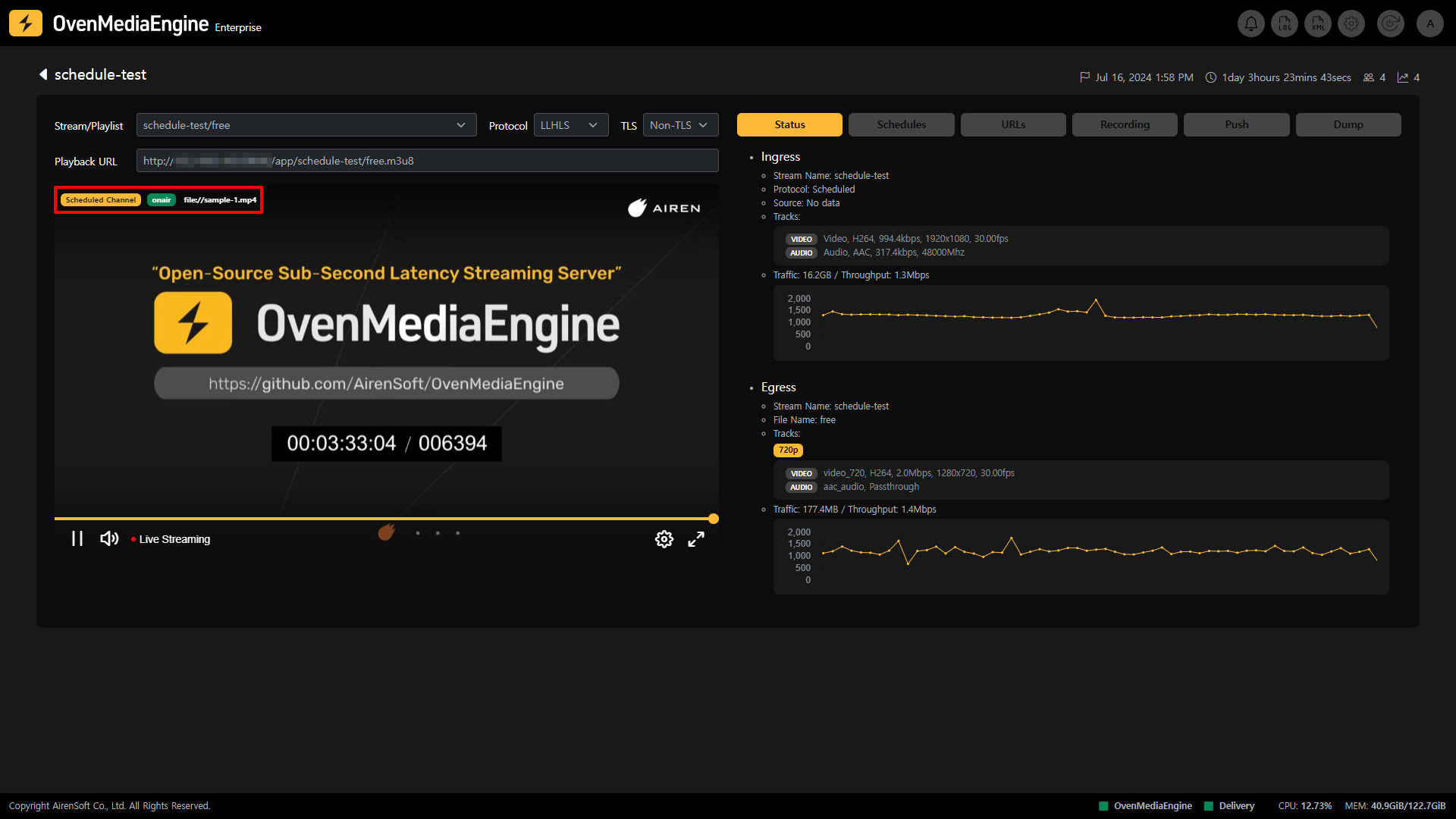
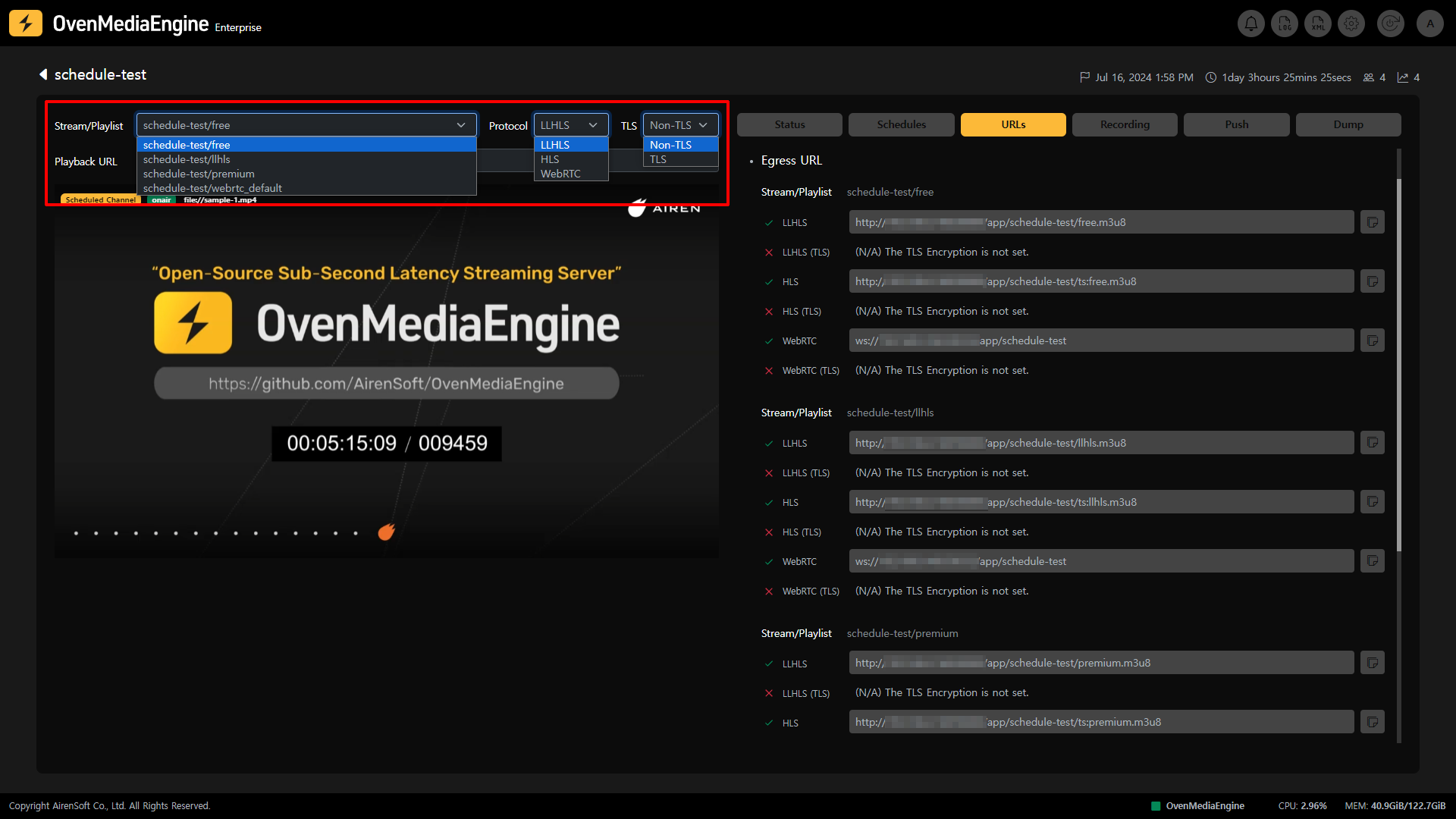
Scheduled Channel은 Stream 목록에서 Stream 항목으로 분류되어 쉽게 구분할 수 있지만, 해당 Stream을 선택하여 Stream Monitoring 화면으로 이동하면 해당 Stream이 재생되고 있는 OvenPlayer 좌측 상단에 Scheduled Channel이 현재 참조하고 있는 것이 Media File인지 Live인지 경로와 함께 Scheduled Channel이 마킹되어 있어 쉽게 확인할 수 있습니다.
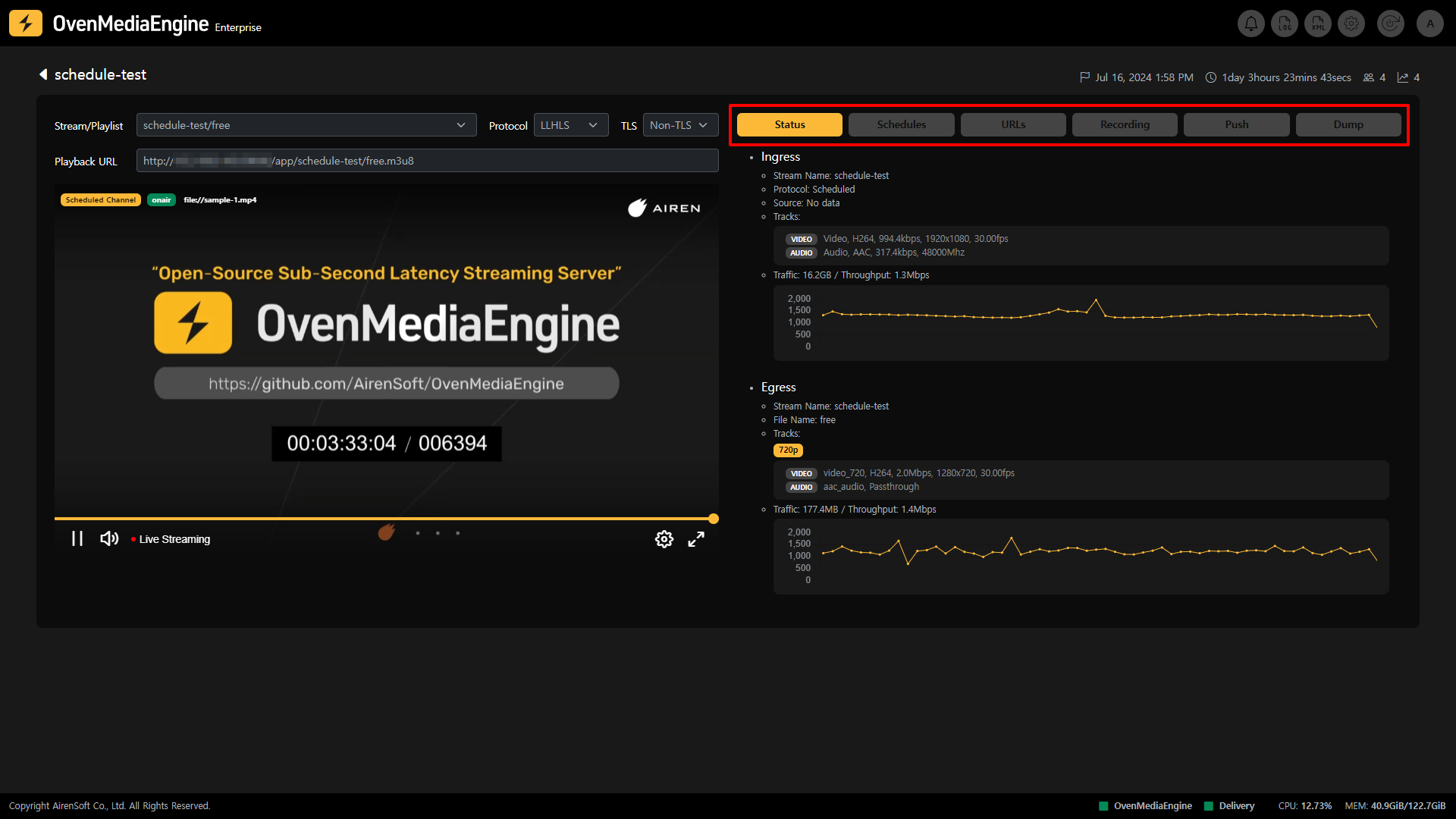
## Scheduled Channel 탭 설명
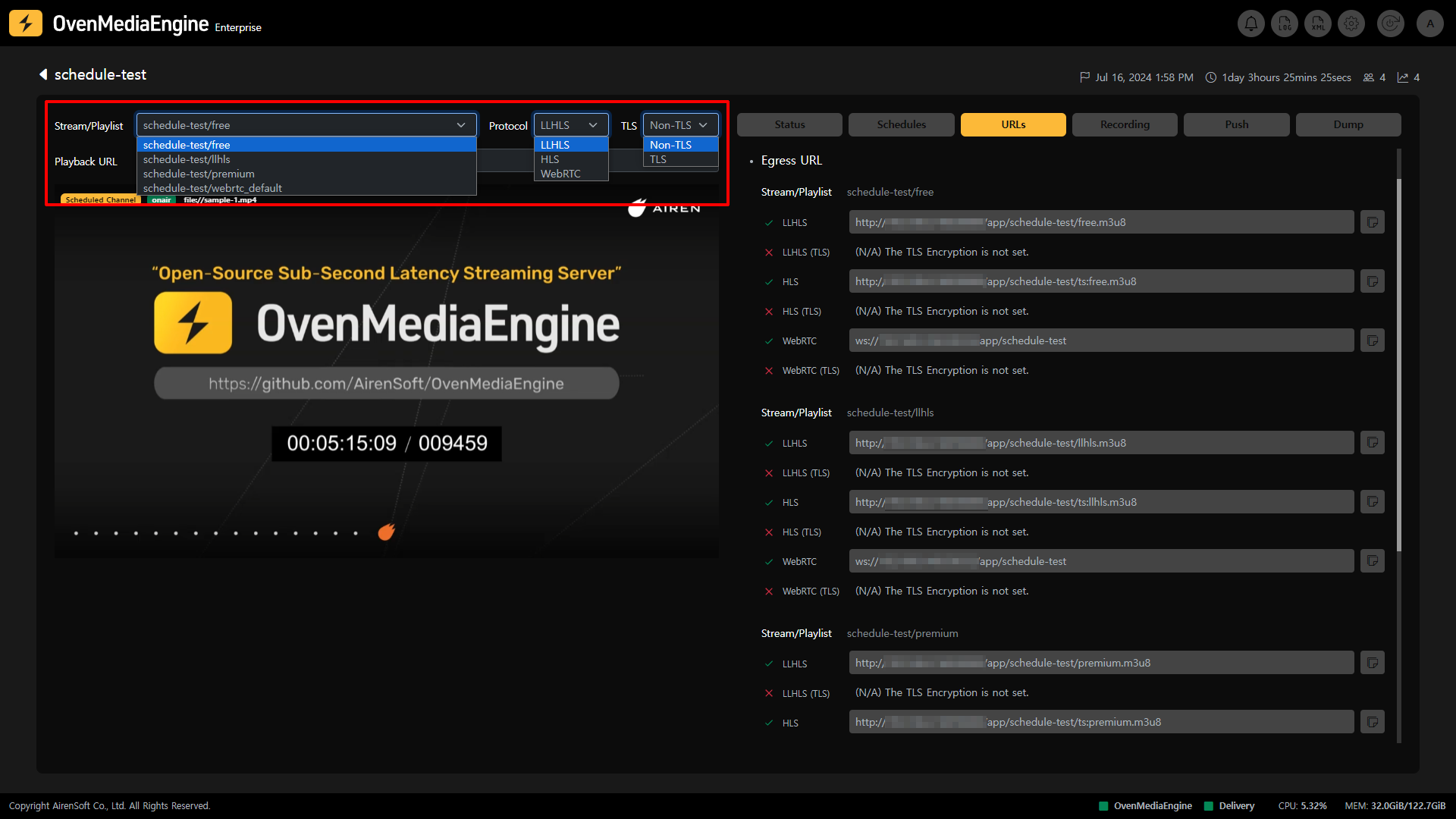
* **Stream Playback**: Stream Monitoring 화면에서 좌측에 위치한 Output Stream, Playlist, Protocol 등의 옵션을 선택 후 내장된 OvenPlayer을 통해 Scheduled Channel의 Stream을 재생할 수 있습니다.
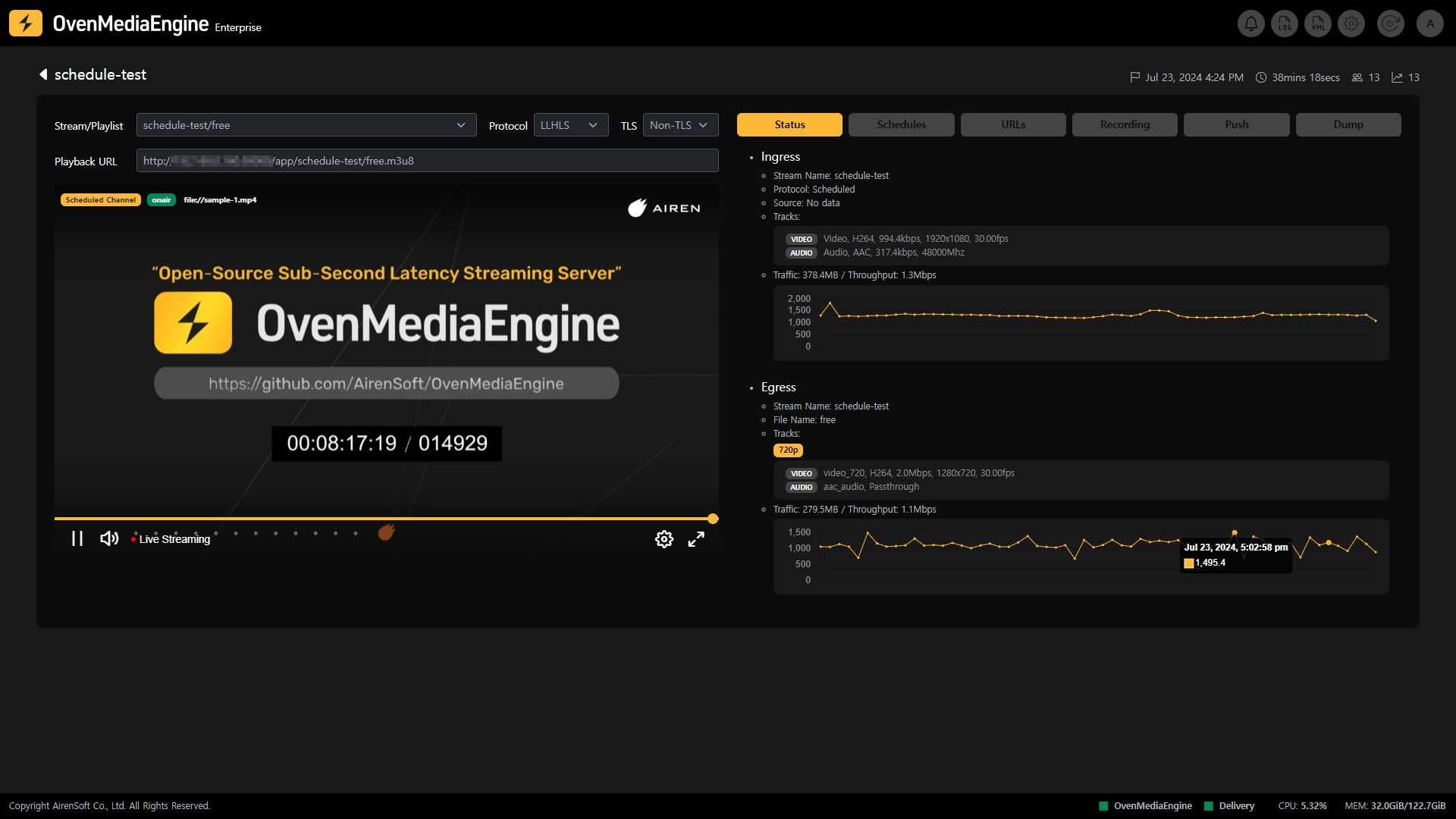
* **Status**: 해당 Channel의 Ingress 및 Egress 메타데이터 및 통계를 확인할 수 있습니다.
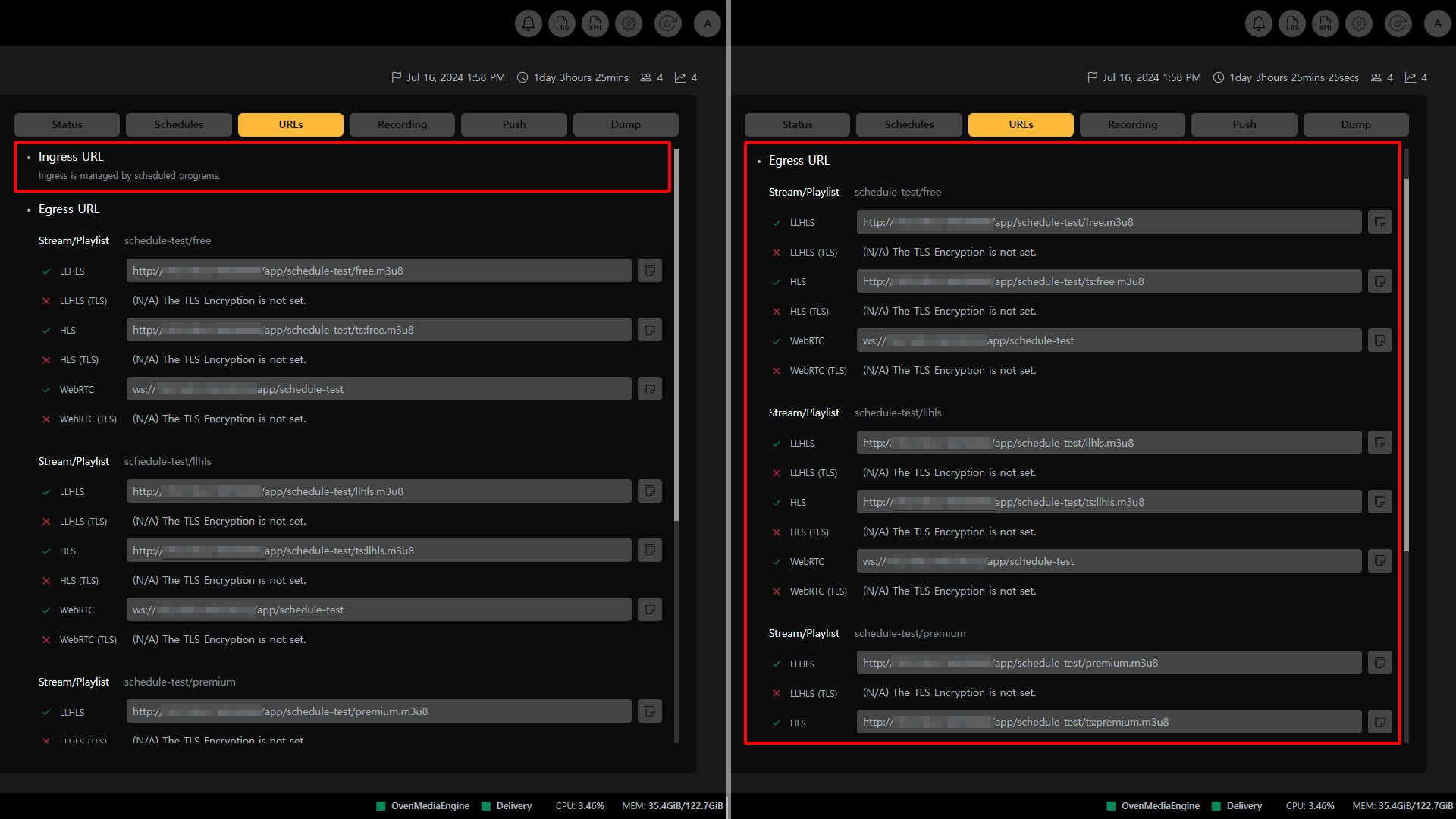
* **URLs**: Scheduled Channel은 Media File 또는 Live로 편성되므로 Ingress는 OvenMediaEngine에 설정된 Scheduled Program을 따릅니다. 따라서, URLs 탭에서 사용자는 Egress URL만 확인할 수 있습니다.
{% hint style="info" %}
* 지원하는 Egress Protocols: WebRTC, WebRTC/TLS, LLHLS, LLHLS/TLS, HLS
{% endhint %}
- **Recording**: 해당 Channel의 녹화 상태를 확인할 수 있습니다.
- **Push Publishing**: 해당 Channel을 다른 플랫폼으로 전송하는 Push Publishing 상태를 확인할 수 있습니다.
- **Dump**: 해당 Channel의 LLHLS Dump 상태를 확인할수 있습니다.
## Scheduled Channel Stream 상태 모니터링
### 메타데이터 및 통계 확인
* **Ingress**: Ingress Stream의 Protocol, Source 위치, Track, Input Traffic 등을 확인할 수 있습니다.
* **Egress**: Egress Stream의 Output Profile, Track, Output Traffic 등을 확인할 수 있습니다.
* *OvenMediaEngine에 Output Profile이 여러개 구성 되어있다면 ABR로 동작합니다.*
## Schedules
### Schedule File
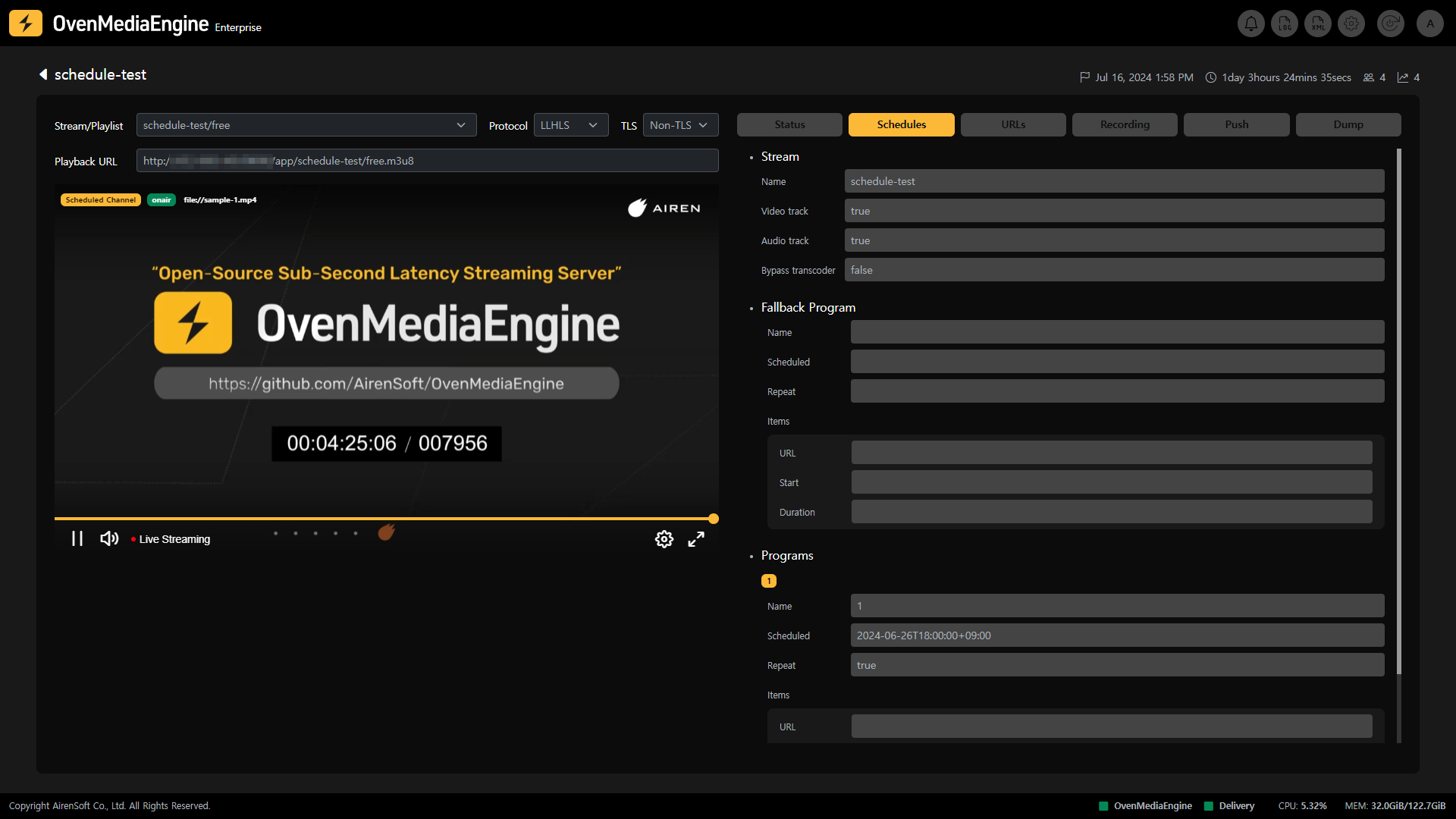
Schedule Channel은 `ScheduleFileDir` 경로에 있는 Schedule 파일 (`.sch`)에 따라 동작합니다. OvenMediaEngine은 Schedule 파일을 분석하여 내용이 변경되면 Schedule Channel을 업데이트하고, 일정에 맞춰 해당 Stream을 재생합니다. 반대로 Schedule 파일이 삭제되면 해당 Stream은 삭제됩니다.
### Fallback Program
현재 시간에 예약된 Program이 없거나 편성에 오류가 발생하면 현재 재생 중인 Screen을 자동으로 전환하는 기능입니다. 편성이 업데이트 되거나 편성이 정상으로 돌아오면 원래 Program으로 다시 전환됩니다. Fallback Program에 사용할 수 있는 소스는 Media File, Live 모두 가능하지만 지속적으로 재생이 가능한 Media File을 이용하는 것이 보편적입니다.
### Program
Schedule 파일에 편성된 Program을 보여줍니다. Program은 Meida File 또는 Live로 구성할 수 있으며 설정된 Program이 순차적으로 재생됩니다.
{% hint style="info" %}
세부 가이드:
{% endhint %}
## Stream 재생
Output Stream 또는 Playlist (OvenMediaEngine 설정에 따름), Protocol 선택 (LLHLS 또는 WebRTC), 인증서 여부 (TLS 또는 Non-TLS) 등 선택한 Playback 옵션에 따라 Stream의 Playback URL이 표시됩니다. 해당 Playback URL을 이용하여 OvenPlayer 또는 외부 플레이어를 통해 재생할 수 있습니다.
### 재생 URL 확인
* **Ingress URL**: 사용자가 설정한 Schedule 파일에 따라 OvenMediaEngine이 Ingress하므로, 따로 표시되는 URL이 없습니다.
* **Egress URL**: OvenMediaEngine에 설정된 Output Stream, Playlist, Protocol 별 재생 주소를 확인할 수 있습니다.
{% hint style="info" %}
각 URL 끝 부분에 위치한 Copy 아이콘을 눌러 쉽게 URL을 복사할 수 있습니다.
{% endhint %}
## Recording 상태 확인하기
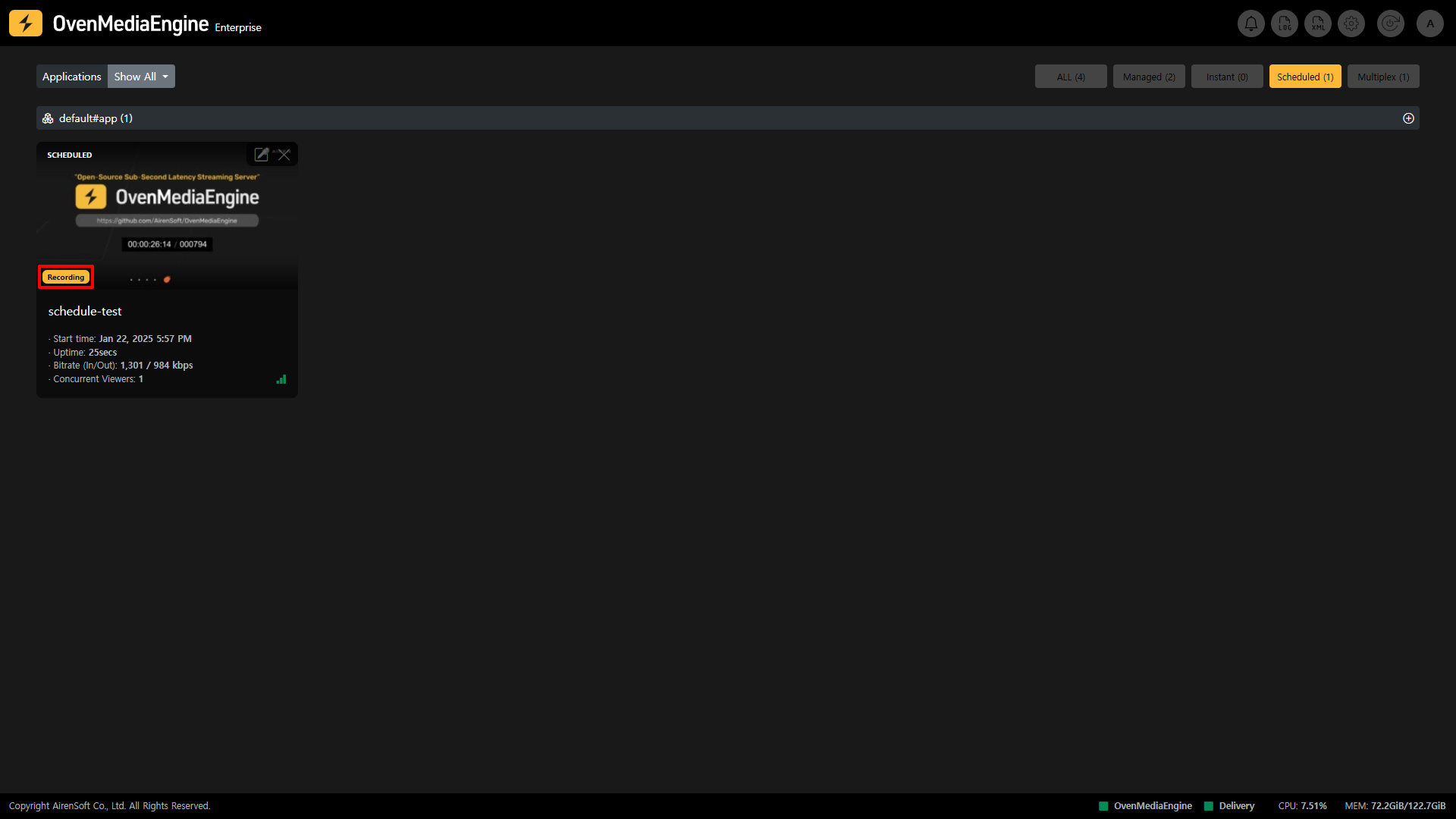
Stream 목록에서 Recording 시 표시되는 마킹
Recording은 해당 Channel이 편성에 따라 Live 중일 때 녹화하는 기능으로 해당 Channel이 녹화 중일 때 Stream 목록에서 Recording 마킹이 붙어 한 눈에 녹화 중임을 알 수 있으며, Stream Monitoring 내 Recording 탭을 통해 상세한 녹화 상태를 확인할 수 있습니다.
또한, 사용자는 Record API를 이용해 Recording 기능을 사용하고 제어할 수 있습니다.
{% hint style="info" %}
* Recording 설정 가이드:
* Recording API 가이드:
{% endhint %}
### Recording 시작하기 | 0.17.1.2+
Recording 기능은 Managed Stream, Instant Stream, Scheduled Channel, Multiplex Channel에 구분 없이 동일하게 동작하므로 [#recording-or-0.17.1.2](https://ovenmediaengine-enterprise.gitbook.io/guide/ko-kr/web-console/web-console-overview/managed-and-instant-streams#recording-or-0.17.1.2 "mention")를 참조하십시오.
## Push Publishing 상태 확인하기
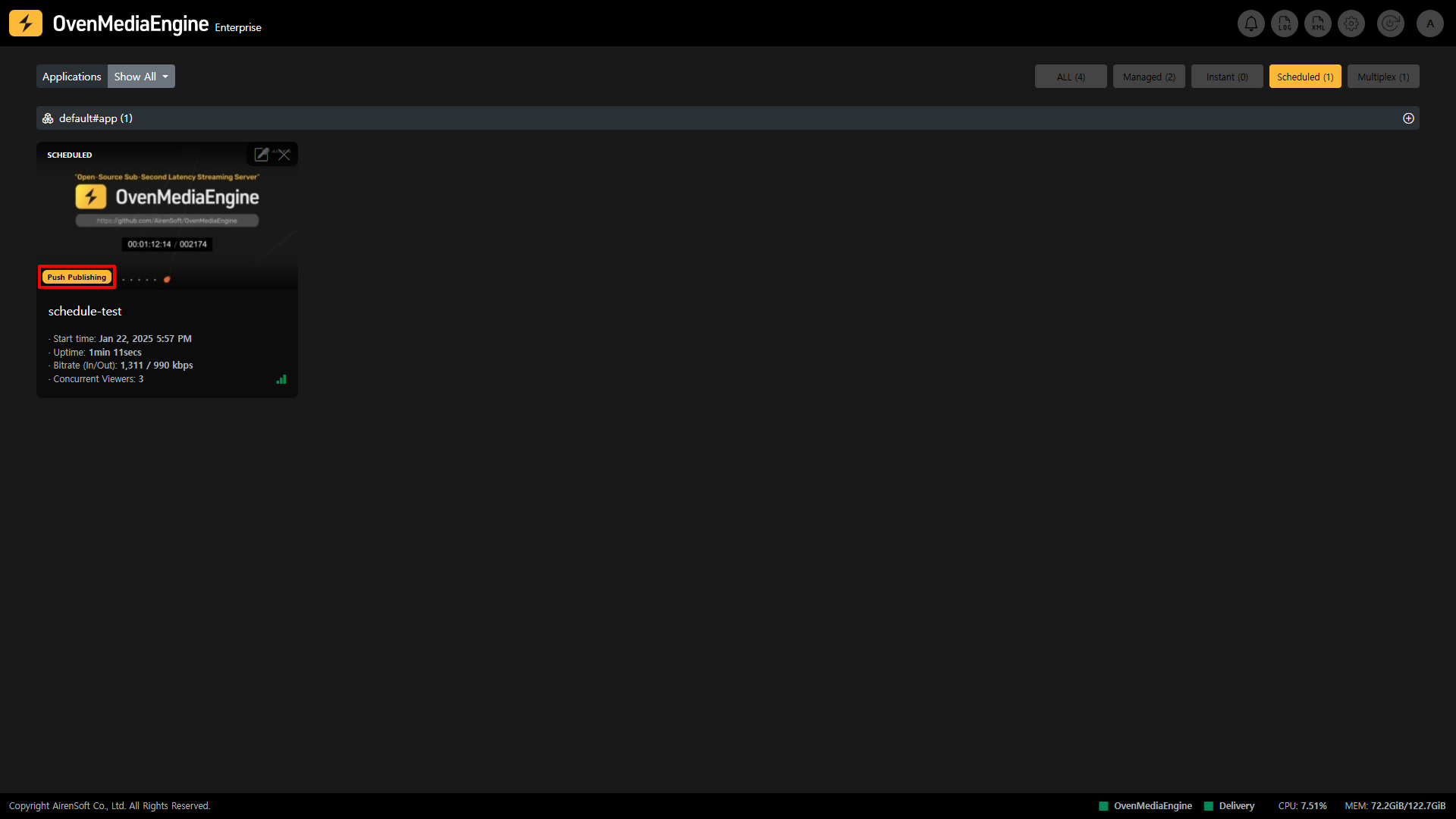
Stream 목록에서 Push Publishing 시 표시되는 마킹
Push Publishing은 해당 Channel을 다른 플랫폼으로 재송출하는 기능으로 해당 Channel이 재스트리밍되는 동안 Stream 목록에서 Push Publishing 마킹이 붙어 한 눈에 재송출 중임을 알 수 있으며, Stream Monitoring 내 Push Publishing 탭을 통해 상세한 Push Publishing 상태를 확인할 수 있습니다.
또한, 사용자는 Push Publishing API를 이용해 Push Publishing 기능을 사용하고 제어할 수 있습니다.
{% hint style="info" %}
* Push Publishing 설정 가이드:
* Push Publishing API 가이드:
{% endhint %}
### Push Publishing 시작하기 | 0.17.1.2+
Push Publishing 기능은 Managed Stream, Instant Stream, Scheduled Channel, Multiplex Channel에 구분 없이 동일하게 동작하므로 [#push-publishing-or-0.17.1.2](https://ovenmediaengine-enterprise.gitbook.io/guide/ko-kr/web-console/web-console-overview/managed-and-instant-streams#push-publishing-or-0.17.1.2 "mention")를 참조하십시오.
## (LL)-HLS Dump 상태 확인하기
(LL)-HLS Dump는 해당 Channel이 LLHLS로 재생될 때 `.m3u8`과 모든 트랙 세그먼트를 Dump하여 Live 중일 때에도 Dump된 지점까지 파일을 VoD에 즉시 제공할 수 있는 기능으로 해당 Stream이 Dump 되는 동안 Stream Monitoring 내 Dump 탭을 통해 상세한 (LL)-HLS Dump 상태를 확인할 수 있습니다.
또한, 사용자는 Dump API를 이용해 Dump 기능을 사용하고 제어할 수 있습니다.
{% hint style="info" %}
* LLHLS Dump 설정 가이드:
* LLHLS Dump API 가이드:
{% endhint %}
### (LL)-HLS Dump 시작하기 | 0.17.1.2+
(LL)-HLS Dump 기능은 Managed Stream, Instant Stream, Scheduled Channel, Multiplex Channel에 구분 없이 동일하게 동작하므로 [#ll-hls-dump-or-0.17.1.2](https://ovenmediaengine-enterprise.gitbook.io/guide/ko-kr/web-console/web-console-overview/managed-and-instant-streams#ll-hls-dump-or-0.17.1.2 "mention")를 참조하십시오.