# Event Monitoring on AWS
## Event Monitoring 보기
OvenMediaEngine Enterprise on AWS는 Event Monitoring 기능이 기본으로 활성화되어 있습니다.
* 사용자는 Web Console 우측 상단의 **\[Monitoring]** 버튼을 클릭하여 이동한 페이지에서 `Server`, `Host`, `App`, `Stream` 관련 상태 정보를 확인할 수 있습니다.
{% hint style="info" %}
Event Monitoring 기능에 대한 자세한 내용은 [Event Monitoring 가이드](https://ovenmediaengine-enterprise.gitbook.io/guide/ko-kr/web-console/web-console-overview/event-monitoring)를 참고해 주십시오.
{% endhint %}
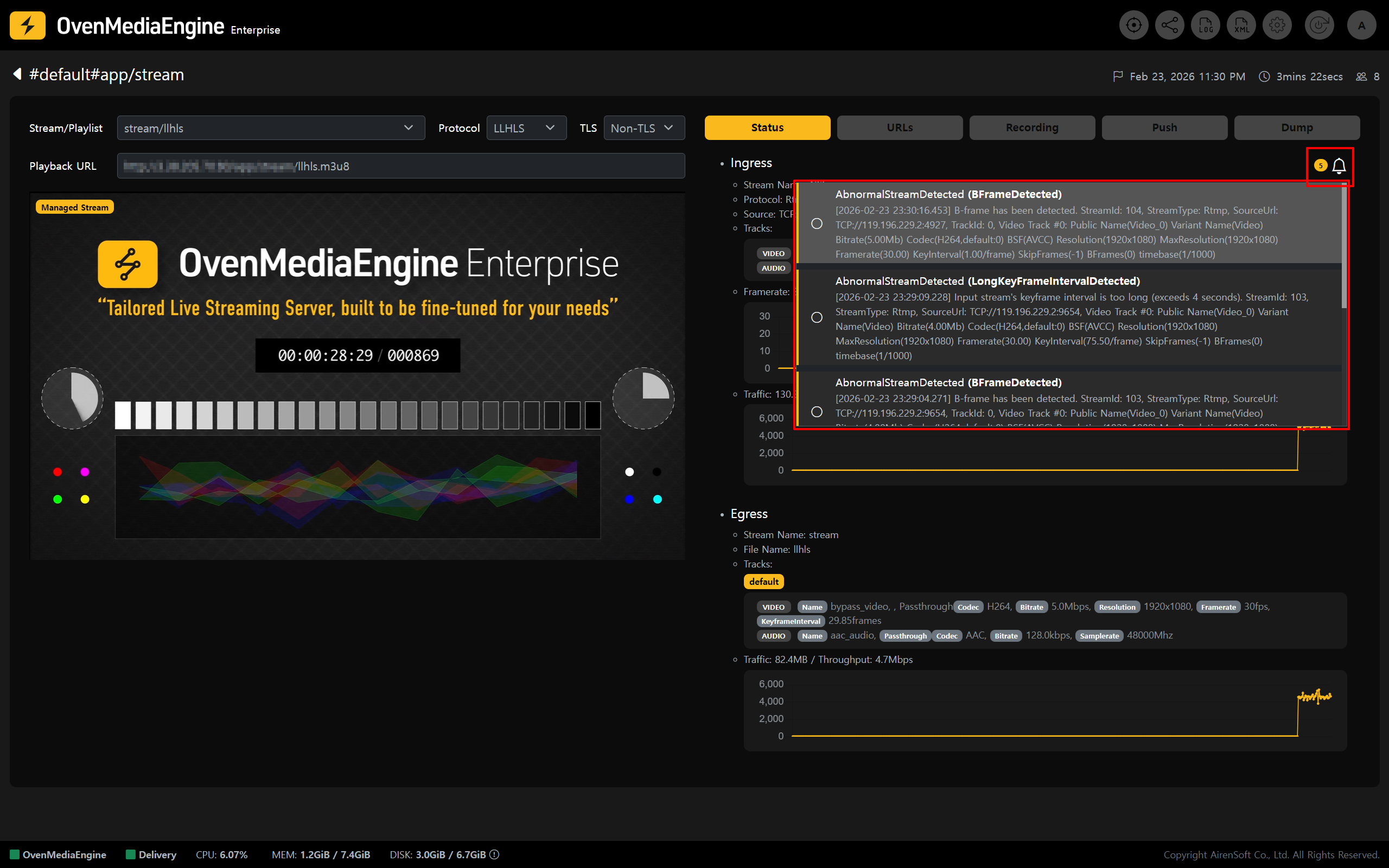
Stream 상세 보기에서 \[Alarm] 아이콘을 클릭하여 해당 Stream에서 최근 1일간 발생한 `Warning` 및 `Error` Alarm을 확인할 수 있습니다.
{% hint style="info" %}
Stream Event의Alarm Level은 [Stream Event Category](https://ovenmediaengine-enterprise.gitbook.io/guide/ko-kr/web-console/web-console-overview/event-monitoring/event-specification#streamevent)를 참고해 주십시오.
{% endhint %}
사용자는 Alarm 개수가 표시된 \[Alarm] 아이콘을 클릭하여 Alarm을 확인할 수 있으며, Alarm 내용 좌측에 위치한 원형 버튼을 클릭하여 읽음 확인 여부를 선택할 수 있습니다. 또한, Alarm 내용을 클릭하면, 해당 Stream의 \[Event Timeline] 화면으로 이동할 수 있습니다.
## Event Monitoring 설정하기
* Web Console 우측 상단의 \[Settings] 아이콘을 클릭해 Settings 페이지로 이동한 뒤, 좌측 메뉴에서 **\[Monitoring]**을 선택하여 세부 설정을 변경할 수 있습니다.
* 세부 설정 완료 후 반드시 우측 상단 \[Update Configuration] 버튼을 눌러 저장해주십시오.
{% hint style="info" %}
Event Level 분류 (Category 및 Type)에 대한 자세한 내용은 [Event Specification 가이드](https://ovenmediaengine-enterprise.gitbook.io/guide/ko-kr/web-console/web-console-overview/event-monitoring/event-specification#event-category-type)를 참고해 주십시오.
{% endhint %}