# PallyCon DRM Configuration
## PallyCon DRM Settings
### Configuration in DRM Info File
OvenMediaEngine Enterprise supports integration with [PallyCon](https://pallycon.com/), allowing easy DRM application to LLHLS streams. Configure the DRM Info File (`.xml`) as follows:
```xml
Pallycondefaultappstream*PallyconWidevine,Fairplaycbcs${VHostName}_${AppName}_${StreamName}https://kms.pallycon.com/v2/cpix/pallycon/getKey/xxxx
```
Set `` to `Pallycon` and configure the necessary information as shown in the example. The `` and `` values are provided by the PallyCon console. The `` can be created using `VHostName`, `AppName`, and `StreamName` macros.
## Checking Applied DRM
### Checking applied DRM in Settings
To verify the DRM settings, click the Settings icon at the top right of the Web Console. In the displayed screen, select the [Streaming](https://ovenmediaengine-enterprise.gitbook.io/guide/exclusive/web-console/web-console-settings/streaming-egress-settings) tab and click on the [LLHLS sub-item to view the DRM configurations](https://ovenmediaengine-enterprise.gitbook.io/guide/exclusive/web-console/web-console-settings/streaming-egress-settings#check-llhls-drm-activation-or-0.16.0.0).
### Checking applied DRM in OvenPlayer
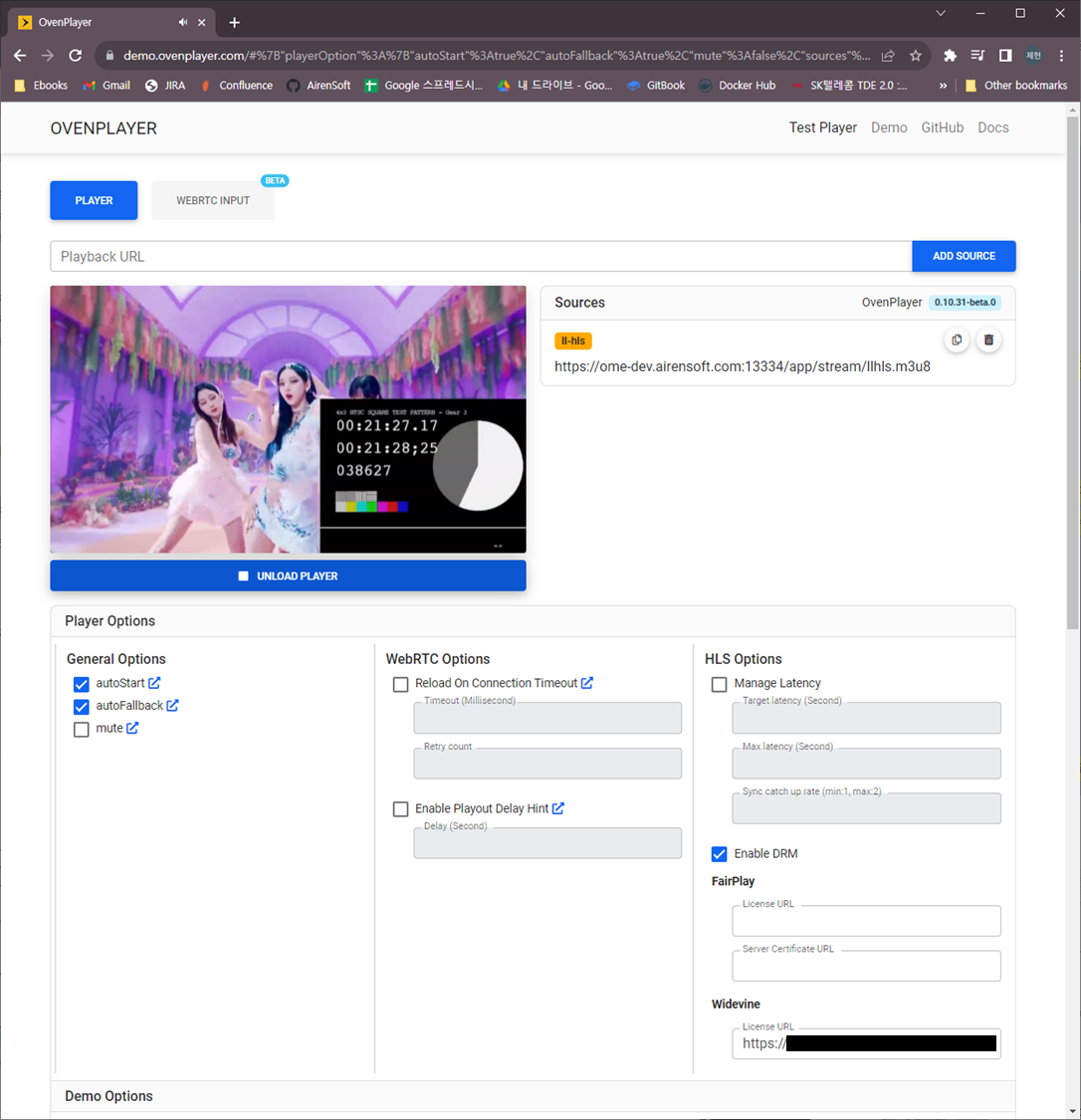
OvenPlayer Demo
[OvenPlayer Demo](https://demo.ovenplayer.com/) now includes the Enable DRM option. You can test the applied DRM using the Egress URL provided by OvenMediaEngine Enterprise.
To find the Egress URL, go to the [Stream List](https://ovenmediaengine-enterprise.gitbook.io/guide/exclusive/web-console/web-console-overview/stream-list) in the Web Console and click on the generated Stream Box to enter the Monitoring screen. Then, click the [URLs tab to view the Egress URL](https://ovenmediaengine-enterprise.gitbook.io/guide/exclusive/web-console/web-console-overview/stream-list/managed-and-instant-streams#playback-url).\
You can test DRM functionality by entering the Egress URL along with the License URL, Key, Value, and other required fields in the [OvenPlayer Demo](https://demo.ovenplayer.com/).
---
# Agent Instructions: Querying This Documentation
If you need additional information that is not directly available in this page, you can query the documentation dynamically by asking a question.
Perform an HTTP GET request on the current page URL with the `ask` query parameter:
```
GET https://ovenmediaengine-enterprise.gitbook.io/guide/features/access-control-and-security/digital-rights-management-drm/pallycon-drm-configuration.md?ask=
```
The question should be specific, self-contained, and written in natural language.
The response will contain a direct answer to the question and relevant excerpts and sources from the documentation.
Use this mechanism when the answer is not explicitly present in the current page, you need clarification or additional context, or you want to retrieve related documentation sections.